

If you are a piano teacher and have recently heard the buzz on social media about using digital Boom™️ Cards in your piano studio, but you’re not quite sure how to get started with Boom™️ Cards in piano lessons, I’m here to help. 😉
New tech, new apps, new processes in our studios can be a little intimidating sometimes, but this set-up is SO quick and easy, you’ll wish you had jumped in with Boom Cards sooner!
I’ll walk you through all this in just 10 minutes!
✅ Step 1: How to Create a FREE Boom Learning Account
✅ Step 2: How to Set-up your Teacher Profile in your Account
✅ Step 3: How to Download FREE Decks of Boom Cards
✅ Step 4: How to Create a FastPin Link & Play with Your Students Today!
(Prefer to watch a video tutorial instead of reading throughone? Watch the 5-minute video tutorial I created on YouTube instead or click any of the links in the steps below to be taken directly to that section of the YouTube tutorial.)
Step 1: Create a FREE Boom Learning Account
Hop over to the Boom Learning website. (You must do this on a computer, not a mobile device.)
Scroll until you see the blue “Join for FREE” button and click it.
Choose the “Educator” account option in the “Which best describes you?” section.
Choose “Join with email” in the “Educator Sign-up” section.
You can definitely join with any of the sign-up options on this page. I recommend the email option because you easily know where to go to reset a password if needed.
Create your free Boom Learning account by adding your preferred email address and creating a password for your new Boom Learning account.
Check the top 2 boxes on the next “Terms of Use” page. The 3rd box is optional, and you may check it if you would like to allow Boom to collect data for Google Analytics purposes.
Then click “Continue.”
You’ll then be prompted to choose a paid membership option, which you can do if you choose. If you want to start with a free Starter account, click the “Not Now” button.
Congrats! You have a Boom Learning account! 🥳
Step 2: Set-up Your Boom Learning Teacher Profile
You’ll be immediately taken to the “Classes” section within your account after you create the account.
Click “Type Your Name Here” to name yourself inside your account. I chose to name myself what my students call me, which is Miss Kelly.
You have the option here to set up 1 classroom and create up to 5 student accounts in this area of your account if you choose.
Since we’re utilizing the free Starter account in the quickest, easiest way, we’re going to skip creating classrooms or student accounts in this post.
We’re making progress!
Step 3: Download FREE Decks of Boom Cards

You’ll be able to navigate to the different sections of your Boom Learning account and the Boom Learning website with these tabs at the top of the page. In Step 2, we were in the “Classes” tab.
To download free decks of Boom Cards, click the “Store” tab.
This is where you can search for TONS of Boom Cards for piano lessons, both free decks and decks for sale that you can purchase or download and add to your account.
To get started with several free decks of Boom Cards without searching, head over to the free section of my Boom Store – Kelly Bordeaux Piano.
Every free deck of Boom Cards that’s available to the public in my store is accessible at that link.
Click the blue, “Add to Library” button beside any deck that you would like to add to your library.
You then have the option to give your students access to play any of these activities you’ve added to your library.
Want an exclusive free deck that’s only available to my email newsletter subscribers? Click here to grab a free Boom Cards game that reviews dynamics terms and symbols and to receive weekly Boom Cards tips and tricks from me in your inbox.
You’re almost there!
Step 4: Create a FastPin Link (So Your Students Can Play!)
The easiest way to assign Boom Cards with a free Boom Learning account (Starter account) is to create and use FastPin links. (Also called FastPlay.)
Click the “Library” tab to see your newly downloaded Boom Cards in your account. This is where you can create a FastPin link for any deck of Boom Cards inside your library.
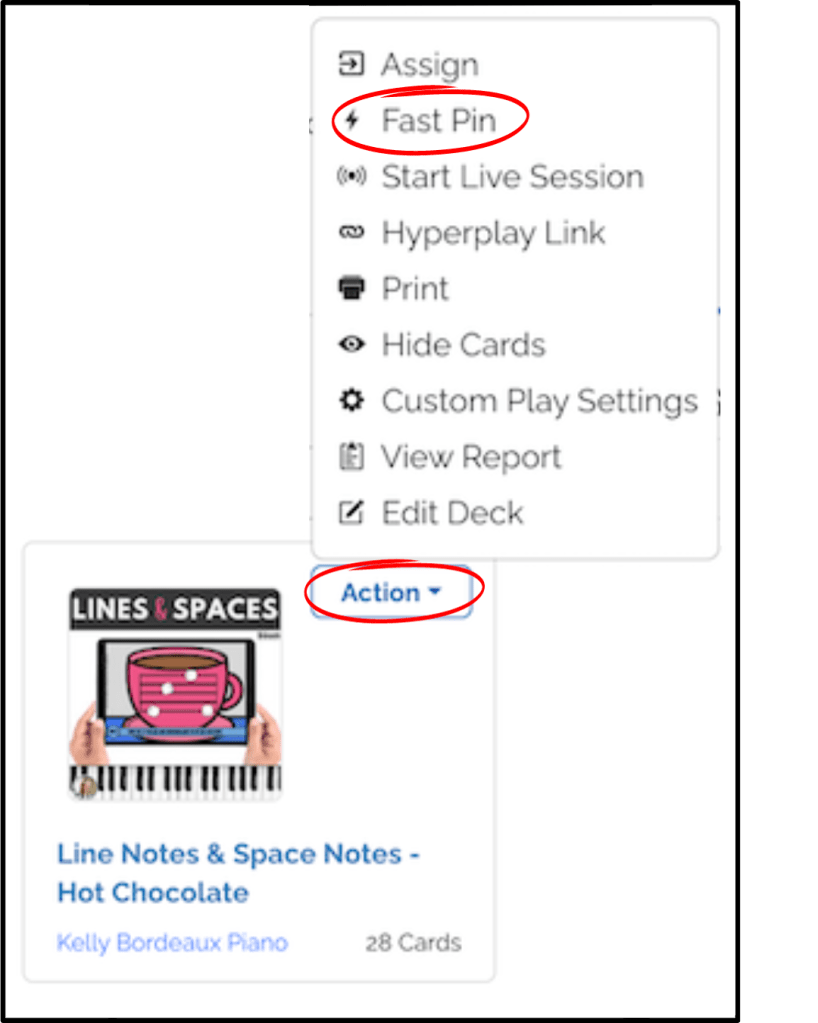
To create a FastPin, click the “Action” button beside the deck you want to play or assign.
In the dropdown menu you’ll see “FastPin” in a list of options.
Click “FastPin” then “Generate Pin.”
A unique link and 4- or 5-digit code will pop up that you can share with your students to play this deck of Boom Cards!
Simply copy and paste the link into a browser to play on a computer.
Or copy and paste the 4- or 5-digit pin to play inside the Boom Cards app.
FastPin links created from inside free Starter accounts expire 5 days after creation, but you can easily create a new one for whichever decks you’re currently using.
You can also share and use FastPin links with as many students as you would like!
And that’s it!
Now that you have an account and can assign Boom Cards to your students, you can browse the Boom Learning Store for all kinds of great digital Boom Cards activities for your piano lessons.
Have a favorite FREE deck of Boom Cards? Feel free to share it in the comments!
Can’t wait for more information on using Boom Cards in your piano lessons? Check out this really helpful blog post by Melody Payne about Getting Started with Boom Cards in Piano Lessons for more great tutorials and information!

 Kelly Bordeaux Piano